Key takeaways
- GCash offers QR-based payment options for eligible merchants.
- Establish payment deadlines, cancellation rules, and deposit policies.
- Verify actual payment receipt rather than trusting screenshots alone.
- Match each payment to its corresponding booking.
- Keep pending and confirmed reservations clearly separated.
- Track court rental revenue, refunds, and outstanding balances.
- DinkPOS supports court booking and payment-proof verification workflows.
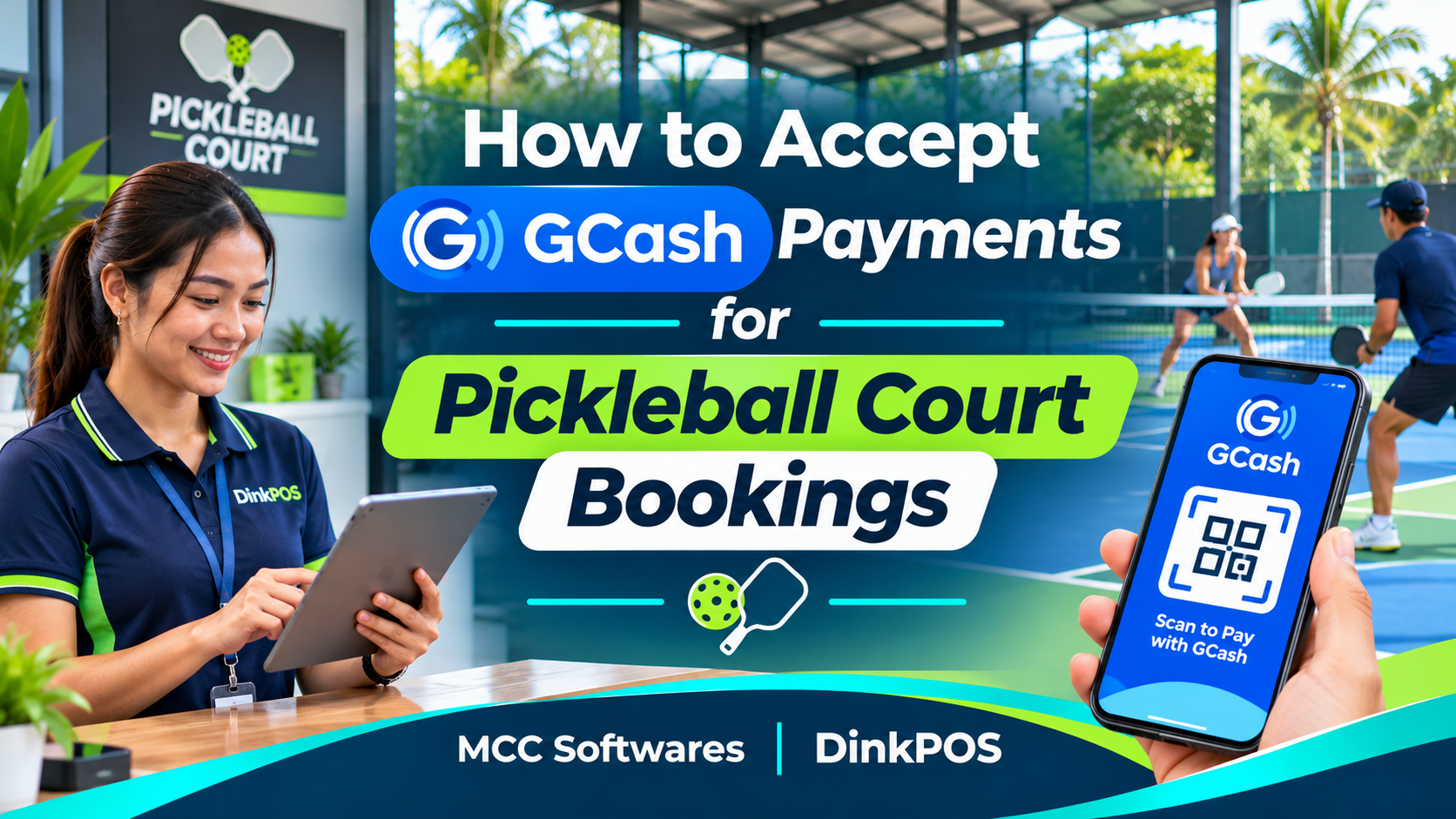
Accepting GCash payments for pickleball court bookings can make reservations more convenient for both players and facility owners in the Philippines.
Imagine a customer messaging your Facebook Page to reserve a court for Saturday evening. You confirm the schedule, send your GCash details, and wait for a payment screenshot.
Sounds simple, right?
But what happens when several customers want the same time slot? Or someone sends a screenshot, but the payment doesn't appear in your account?
These situations are why having a proper booking and payment process matters.
Why Accept GCash for Pickleball Court Reservations?
Many Filipino customers are familiar with GCash, making it a practical payment option for businesses offering online reservations.
Instead of requiring customers to visit your facility to pay, you can provide supported digital payment instructions.
This is particularly useful for players who want to secure court schedules in advance.
GCash can also help you:
Accept advance booking payments.
Reduce reliance on cash transactions.
Provide customers with digital transaction records.
Organize payment verification before confirming reservations.
However, accepting digital payments doesn't automatically solve booking problems. You still need a reliable way to match payments with reservations.
Step 1: Set Up a Suitable GCash Payment Account
Before accepting customer payments, determine which GCash payment service is appropriate for your facility.
For regular business transactions, consider applying for GCash for Business.
Approved merchants can access supported payment acceptance services, depending on their account and product eligibility.
GCash QR and QR Ph Payments
GCash supports QR-based payments, allowing customers to scan a supported code and complete a transaction through the app.
With GCash QR payment instructions, customers can review the merchant details and payment amount before confirming.
Check the applicable merchant requirements, fees, and settlement arrangements before using the service commercially.
Step 2: Establish Your Booking and Payment Rules
Before accepting reservations, decide how customers will pay.
For example, your facility could require full payment or a deposit before confirming a court.
Suppose your rental rate is ₱400 per hour.
A customer reserving two hours would have an ₱800 rental charge before any applicable additional fees.
You should clearly communicate:
Total reservation amount
Required deposit, if any
Payment deadline
Cancellation and refund policies
Rescheduling conditions
Overtime charges
These are important because customers should understand the terms before sending money.
Step 3: Give Customers Clear Payment Instructions
When someone selects a court and schedule, provide the payment details in one organized message.
Include the amount, approved payment account or QR code, booking reference, and deadline.
For example:
Court Booking Details
Court: Court 2
Date: Saturday
Time: 6:00 PM–8:00 PM
Rental Fee: ₱800
Payment Method: GCash / QR Ph
Status: Awaiting Payment
Ask customers to verify the recipient's details before completing the payment.
Also explain whether their booking is temporarily held or remains available to other customers until payment is confirmed.
Step 4: Verify Payments Before Confirming Bookings
This is one of the most important steps.
A customer may send a screenshot showing a successful GCash transaction, but a screenshot alone should not be treated as final proof that your business received the money.
Screenshots can contain incorrect details or be manipulated.
What Should Staff Check?
Verify the transaction using your business's authorized payment account or merchant records.
Check:
Amount received
Transaction date and time
Transaction reference number
Payment status
Matching booking details
GCash provides guidance for payments that have not been received, including checking transaction history and asking the merchant to confirm receipt.
If the payment is missing or still processing, keep the reservation pending while the transaction is investigated.
Never ask customers to share their GCash PIN or one-time password.
Step 5: Confirm the Court Reservation
Once you've verified payment, update the booking status and notify the customer.
A confirmation should include the court number, date, time, payment status, and relevant facility rules.
For example:
Booking Confirmed!
Your reservation for Court 2, Saturday, 6:00 PM–8:00 PM, has been confirmed. Thank you, and see you on the court!
This helps prevent misunderstandings when players arrive.
It also gives staff a clear reference when checking customers in.
Step 6: Track Payments and Daily Court Sales
If your facility manages several courts, manually reviewing GCash messages and spreadsheets can quickly become confusing.
At the end of each day, you should know how many bookings were paid, which payments remain pending, and whether your recorded sales match your payment account.
Keep records of cancellations, deposits, outstanding balances, and refunds.
Where a payment provider charges transaction fees, distinguish gross booking revenue from the amount actually settled to your business.
Make Booking and Payment Verification Easier With DinkPOS
Managing court schedules, checking GCash payments, and tracking reservations separately can take valuable time.
DinkPOS, developed by MCC Softwares, is a pickleball court management system designed to bring booking, payment verification, POS, and inventory workflows together.
With DinkPOS, facility owners can manage court reservations, provide public booking pages, and organize payment submissions.
For supported manual payment workflows, players can upload proof of payment while staff review submissions before confirming reservations.
DinkPOS also includes court monitoring, inventory, and reporting features to support daily facility operations.
Important: Uploading payment proof does not mean a transaction has automatically been verified by GCash. Staff must still confirm receipt through their authorized payment channel.
Explore DinkPOS pickleball court management software and its 30-day free trial.
If you're still planning your facility, read our guide to starting a pickleball court business in the Philippines.
Frequently Asked Questions
Can customers pay for court bookings using GCash?
Yes. Facilities can accept supported GCash payments using an appropriate merchant payment arrangement and a booking workflow that records and verifies transactions.
Can I confirm a booking using a GCash screenshot?
You should verify that the funds were received before confirming payment. A screenshot alone is insufficient.
Does DinkPOS automatically collect GCash payments?
DinkPOS supports manual payment verification workflows, including payment-proof uploads. Automatic GCash payment collection should not be assumed without confirming the specific integration and configuration.
Final Thoughts
Accepting GCash payments for pickleball court bookings doesn't have to be complicated.
The key is establishing clear payment instructions, verifying every transaction, and keeping reservations organized.
As your facility grows, using dedicated court management software can help your team spend less time checking messages and more time serving players.
Ready to simplify your pickleball bookings?
Visit DinkPOS to explore its booking and facility management features.
Questions this article answers
- How can pickleball courts accept GCash payments?
- Can customers pay for court reservations through GCash?
- How do you verify a GCash payment screenshot?
- Should a court booking be confirmed before payment?
- How can a facility prevent fake payment confirmations?
- What is QR Ph?
- Can DinkPOS manage GCash payment verification?
Sources and references
- GCash for Business Scan-to-Pay — GCash
- How to Scan to Pay with GCash — GCash
- GCash for Business Merchant Discount Rate — GCash
- What to Do if Money Was Not Received — GCash
- How to Start a Pickleball Court Business in the Philippines — MCC Softwares
Topics covered
GCashGCash for BusinessQR PhDinkPOSMCC SoftwaresPickleballPhilippinesCourt Booking SoftwarePayment VerificationPoint-of-Sale Systems
Related MCC products and services
Last reviewed for accuracy: 13 November 2026.
Related articles
-
How to Calculate Pickleball Court Utilization Rate
Learn how to calculate pickleball court utilization rate using a simple formula. Discover how to track bookings, measure unused court hours, and improve your facility's performance.
-
Pickleball Court Booking in the Philippines: How DinkPOS Works
Discover how DinkPOS helps players find pickleball courts, check availability, and submit payment proof—and how facility owners manage reservations, court sessions, sales, and inventory.
-
How to Manage Court Rentals, Sales, and Inventory
Running a pickleball facility? Discover how a pickleball POS system simplifies court rentals, online bookings, cashier sales, inventory tracking, and equipment rentals. Learn how DinkPOS helps Philippine pickleball businesses manage daily operations.
-
How to Start a Pickleball Court Business in the Philippines
Planning a pickleball court business in the Philippines? Learn how to validate demand, assess a site, budget for construction, check permits, set prices, and manage bookings with DinkPOS.
-
Best Pickleball Court Management Software in the Philippines
Compare pickleball court management software in the Philippines. Explore booking, GCash and QRPh payments, POS, reports and a 30-day DinkPOS trial.