Key takeaways
- Players can search participating facilities by name, city, or province.
- Each facility controls its court rates and available payment methods.
- Players pay the facility directly and upload proof of payment.
- Facility staff verify payments before confirming reservations.
- DinkPOS combines booking with court operations, POS, inventory, and reporting.
- Facility owners can start with a 30-day free trial.
Pickleball court booking in the Philippines is easier when players can find a facility, check available schedules, and follow clear payment instructions. DinkPOS brings these steps together through a public court directory and individual facility booking pages, while giving operators tools to manage daily court operations.
The process is straightforward: find a participating facility, choose a court and time, pay through the facility’s available payment method, and upload proof. The facility reviews the payment before confirming the reservation.
What Is DinkPOS?
DinkPOS is a pickleball court booking and business management platform developed by MCC Softwares. It combines online reservations with court monitoring, point of sale, inventory, equipment rentals, and business reports.
For players, it provides a way to discover participating facilities and book a game. For owners, it connects customer reservations with the work happening at the reception desk and on the courts.
The public directory includes facilities that choose to be listed. It should not be treated as a complete directory of every pickleball court in the Philippines.
How Players Book a Pickleball Court Through DinkPOS
1. Find a Participating Facility
Start at DinkPOS’s court directory and search by facility name, city, or province.
You can also use Courts Near Me, which requests your location when you select it. Displayed distances are approximate straight-line distances, so consider your actual route before deciding where to play.
If your preferred facility has shared its own booking link or QR code, you can use that to reach its booking page directly.
2. Choose a Court and Available Time
Open the facility’s booking page and check its live availability. Select the court and schedule that suit your group.
Before proceeding, review the date, time, and displayed rate carefully. Each facility sets its own court rates and operating arrangements.
If you need clarification about equipment, group size, weather conditions, or venue rules, contact the facility before paying.
3. Pay the Facility Directly
DinkPOS supports a booking workflow in which facilities can offer GCash, QRPh, or bank transfer. The available options depend on what the selected facility has configured.
Players pay the facility directly using its displayed payment instructions. This court payment is separate from the software subscription that a business owner pays for DinkPOS.
Check the recipient and amount before completing the transaction.
4. Upload Your Proof of Payment
After paying, upload your proof through the booking process.
Use a clear image that allows staff to check the transaction details. Keep your own payment record in case the facility needs clarification.
Uploading proof does not automatically approve the payment or confirm the reservation. The facility’s team checks each payment.
5. Check for Facility Confirmation
Wait for the facility to confirm your reservation before treating the court slot as finalized.
If your booking remains pending or you uploaded the wrong proof, contact the facility rather than submitting another payment without clarification.
| Booking step | Player’s action | Facility’s role |
|---|---|---|
| Court selection | Choose an available court and time | Maintain courts, schedules, and rates |
| Payment | Pay using a displayed payment method | Provide payment instructions |
| Proof submission | Upload readable payment proof | Review the transaction |
| Confirmation | Check the booking’s confirmation | Confirm the reservation after verification |
How Facility Owners Set Up DinkPOS
DinkPOS offers a guided setup checklist covering courts, rates, operating hours, and payment methods.
Before sharing your booking page, prepare accurate information about your facility and decide who will handle incoming reservations.
Configure Courts, Hours, and Rates
Add your courts and set the schedules and prices players should see.
Review the booking page from a customer’s perspective. Check that court names are understandable and that the displayed information matches your actual operations.
If you are still planning the facility itself, read our guide on how to start a pickleball court business in the Philippines before finalizing your booking procedures.
Add Your Payment Methods
Configure the payment options your business accepts.
Assign responsibility for reviewing uploaded proofs and confirming reservations. Staff should check payments against the receiving account’s transaction records instead of relying only on the appearance of a screenshot.
A clear review process helps players understand when their booking is confirmed and reduces unnecessary follow-up messages.
Share Your Booking Link or QR Code
DinkPOS provides booking links and QR codes that facilities can share with players.
Place the link on your social media pages and use a QR poster at your reception area. When your facility is ready, you can also choose to appear in the public directory.
Directory listing creates another route for players to discover your facility, but it does not guarantee bookings.
What Happens After a Booking Is Confirmed?
DinkPOS also supports the work involved in running the facility during the session.
Its live court dashboard shows which courts are occupied, available, or coming up next. Court timers and extension tools help staff monitor playing time and manage requests for longer sessions.
Before approving an extension, staff should check the next reservation and explain any additional charge to the players.
Facilities can also use DinkPOS for:
- Point of sale: Record counter sales such as drinks, balls, and gear.
- Inventory: Monitor stock levels and restocking needs.
- Equipment rentals: Connect rented equipment with the session using it.
- Staff permissions: Assign roles that limit access to relevant tasks.
- Multiple branches: Manage locations with their own courts, hours, and stock.
- Reports: Review bookings, sales, and busy periods.
Check the current subscription plan’s inclusions and limits when choosing a package for your facility.
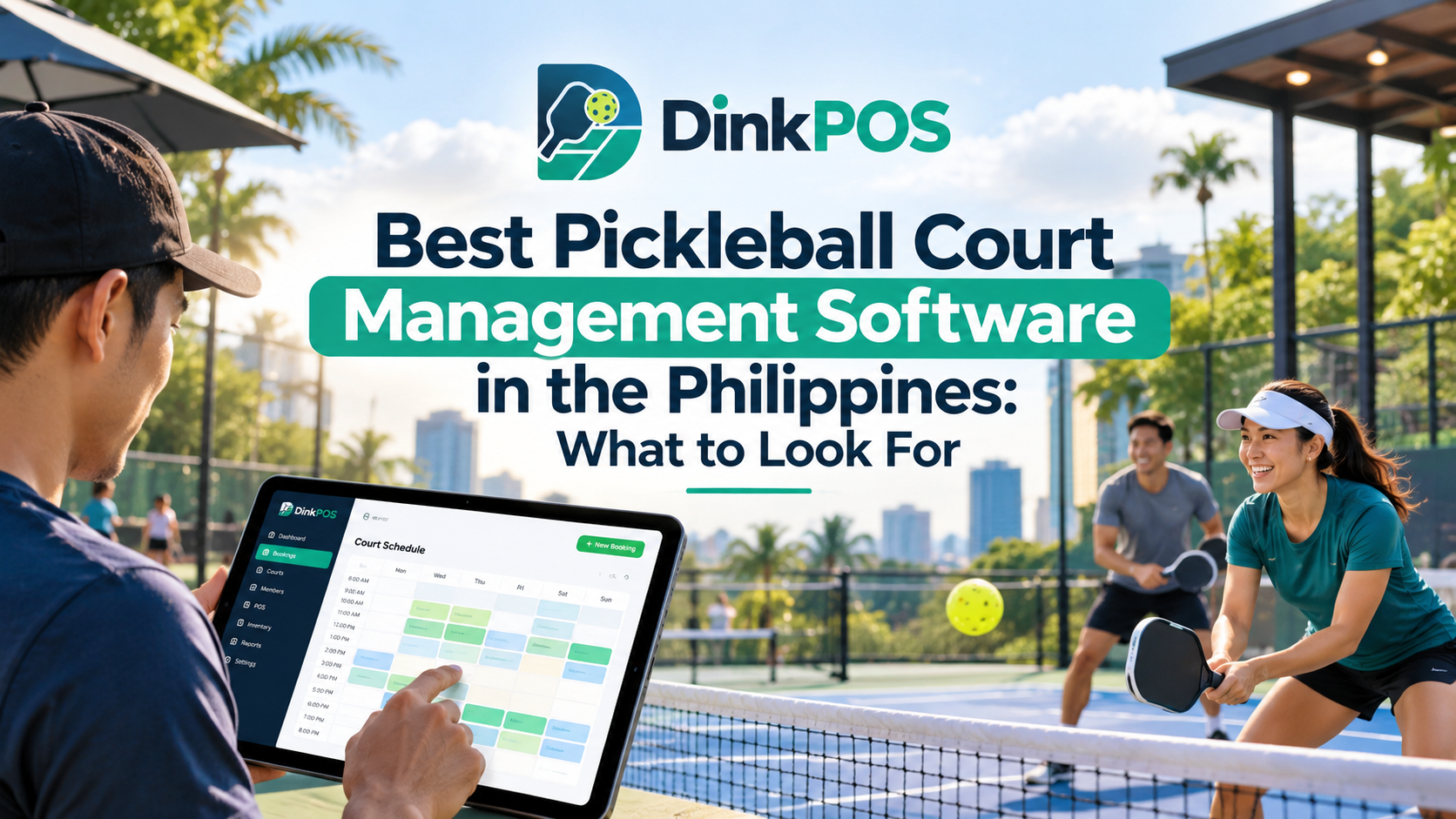
For a broader evaluation checklist, explore what to look for in pickleball court management software in the Philippines.
Set Clear Booking and Privacy Policies
Software works best when players understand the facility’s rules.
Before accepting reservations, explain how your business handles cancellations, rescheduling, late arrivals, no-shows, weather interruptions, and refunds. These are facility policies; players should check the selected venue’s terms.
Also consider how customer details and payment proofs are handled. The National Privacy Commission’s guidance on the right to be informed explains the information people should receive about the processing of their personal data.
Provide a privacy notice that reflects your actual practices, and give staff access according to their responsibilities.
Frequently Asked Questions
Is Searching for a Court on DinkPOS Free?
Yes. Searching the public directory is free. Court rental rates are set by each facility and paid directly to that facility.
Can Players Pay Through GCash?
Yes, when the selected facility offers GCash. Facilities can also configure QRPh or bank transfer. Follow the payment options displayed on the booking page.
Does DinkPOS Automatically Verify Payments?
No. Players upload proof, and the facility’s staff check and confirm each payment. A submitted screenshot alone is not a confirmed reservation.
Does DinkPOS List Every Pickleball Court in the Philippines?
No. The directory displays participating facilities that have chosen to be listed.
Can Facility Owners Try DinkPOS Before Subscribing?
Yes. DinkPOS currently offers a 30-day free trial, with no payment method required to start. Review the current plans and terms on the website before subscribing.
Start Booking—or Set Up Your Facility
For players, visit DinkPOS to find participating courts, review availability, and follow the selected facility’s booking instructions.
For facility owners, start the 30-day free trial and test the complete workflow: court setup, a booking request, payment review, confirmation, and session management.
If your organization also needs a separate website or custom business application, contact MCC Softwares to discuss the requirements.
Questions this article answers
- How do players book a pickleball court through DinkPOS?
- Can players pay for court bookings using GCash?
- Does uploading payment proof automatically confirm a booking?
- Does DinkPOS list every pickleball court in the Philippines?
- How do facility owners set up online reservations?
- What tools does DinkPOS provide beyond booking?
- Can facility owners try DinkPOS before subscribing?
Sources and references
- DinkPOS — Find Pickleball Courts Near You and Book Online — DinkPOS
- MCC Softwares Products and Services — MCC Softwares
- How to Start a Pickleball Court Business in the Philippines — MCC Softwares
- Best Pickleball Court Management Software in the Philippines — MCC Softwares
- The Right to Be Informed — National Privacy Commission
Topics covered
DinkPOSMCC SoftwaresPhilippinesGCashQRPhNational Privacy CommissionMarlon Caga-anan
Related MCC products and services
Last reviewed for accuracy: 9 November 2026.
Related articles
-
How to Start a Pickleball Court Business in the Philippines
Planning a pickleball court business in the Philippines? Learn how to validate demand, assess a site, budget for construction, check permits, set prices, and manage bookings with DinkPOS.
-
Best Pickleball Court Management Software in the Philippines
Compare pickleball court management software in the Philippines. Explore booking, GCash and QRPh payments, POS, reports and a 30-day DinkPOS trial.